OMTech 60W CO2 Laser + LightBurn
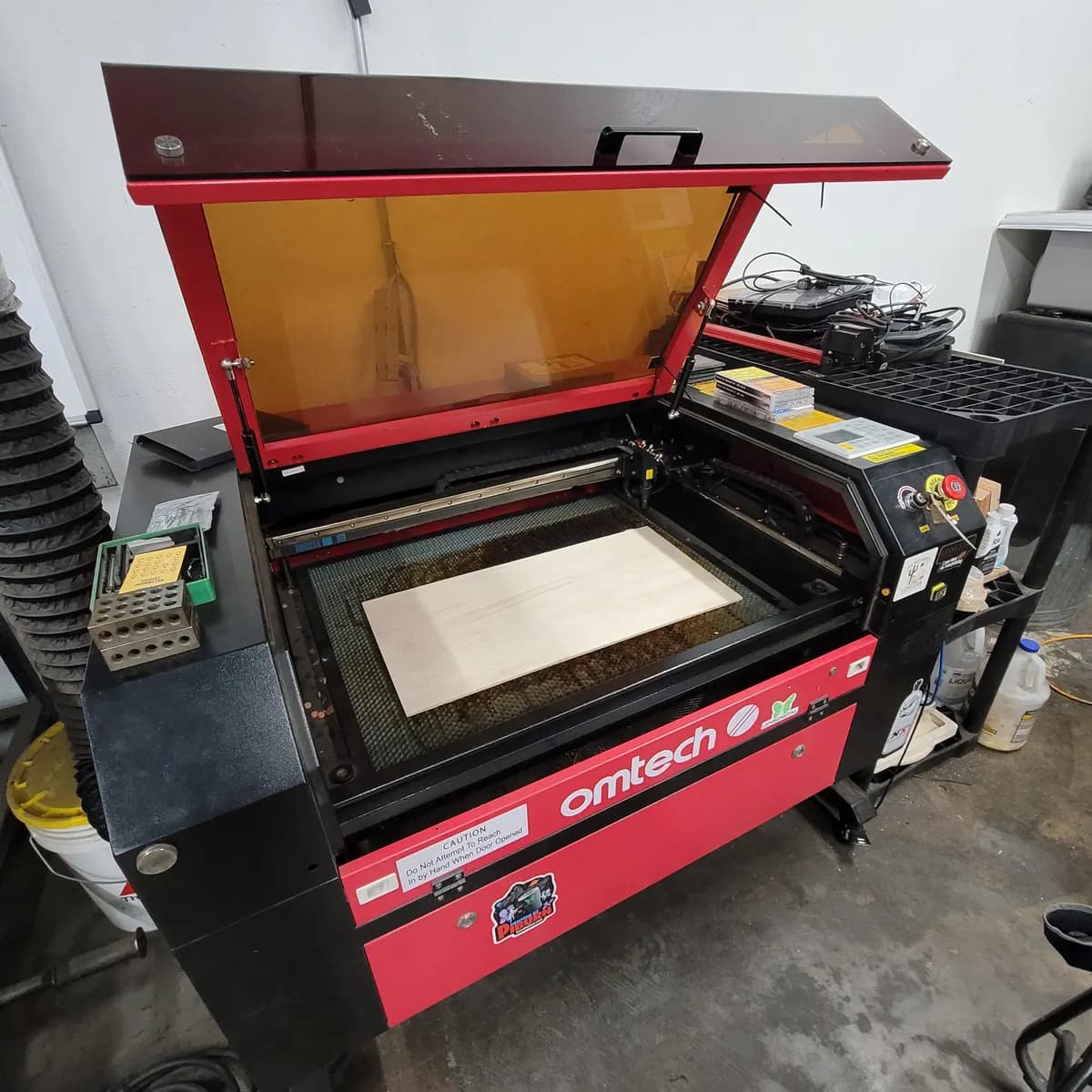
The OMTech 60W CO2 laser is one of the most popular machines in the shop, and it is a great place to start if you have never run a laser. It cuts and engraves wood, acrylic, leather and paper, and a first project is not hard. It does take a little respect, though. This guide walks you through what it can do, what should never go inside it, and how to run a job in LightBurn, step by step.
What it is
This is a 60 watt CO2 laser with a bed of about 20 × 28 inches. A glass tube makes an invisible beam, mirrors steer it, and a lens focuses it to a tiny dot. That dot is hot enough to burn away material. Move the dot slowly and with more power and it cuts. Move it faster with less power and it only marks the surface, which is engraving.
CO2 light is very good at organic materials like wood, paper, leather, fabric and acrylic. It is not good at bare metal. It will not cut steel or aluminum, and shiny metal can bounce the beam where you do not want it. Some plastics look harmless and are not, so read the materials section before you put anything new on the bed.
- Good at: wood and plywood, acrylic, leather, paper and card, fabric.
- Engraves but will not cut: glass, stone, and coated metal.
- Not for: bare metal cutting, and anything on the never list below.
Before you start
Before you run the laser on your own, take the laser orientation. It is free with your membership. Ask staff to schedule it for you, and they will walk you through the machine in person.
There is no booking and no time limit. The laser is first come, first served, so just come in when it is free. Be considerate if someone is waiting, and wrap up your job so they can get a turn.
Bring your own material. There is also a shared scrap bin that is free for anyone to use, and you are welcome to add usable offcuts to it when you are done.
Running a job in LightBurn, step by step
LightBurn is the software we use here to talk to the laser. The steps below are the same for almost every job. Take your time on the first few and the habits will stick.
- 1. Import your design. Drag an SVG, DXF or image file into LightBurn, or use File > Import. Check the size on screen against your real material before you go further.
- 2. Set up your layers. Every color in LightBurn is a layer, and every layer has its own settings. Use one layer for lines you want to cut and a different layer for anything you want to engrave. Always engrave first and cut last, so your piece does not shift or fall out before the engraving is done.
- 3. Put your material on the bed. Lay it flat. A warped board or sheet will go out of focus part way across.
- 4. Set your focus. Use the shop's focus method for the lens to set the right distance between the lens and the top of your material. A badly focused beam is the number one cause of weak cuts.
- 5. Pick your origin. Tell LightBurn where on the bed the job should start so it lands on your material and not on the edge.
- 6. Frame the job. Use the Frame button so the head traces the outline without firing. Watch that it stays inside your material.
- 7. Do a test. Settings are different for every material and every tube. Run a small test square on a scrap of the same material before you run the real thing.
- 8. Turn on air assist and the exhaust. Both must be running before the laser fires. Air assist blows the flame away from the cut and keeps the lens clean. The exhaust pulls the smoke out of the machine and out of the room.
- 9. Close the lid and press start. Stay at the machine and keep your eyes on it.
- 10. Never leave it unattended while it is running. A laser can start a fire in seconds, and a small flame is easy to put out only if you are standing there. When the job is done, wait for the exhaust to clear the smoke before you open the lid.
Air assist and exhaust
Do not run the laser without air assist and exhaust. Air assist cuts down on flare-ups and keeps resin and smoke off the lens. Exhaust protects you from fumes and the machine from the residue that builds up inside.
On our laser the air-assist pump and the exhaust fan are on separate switches. Switch both on before every job. The laser orientation shows you where they are. Never run a job with either one off.
Safety
Most laser fires start the same way: someone walked away. The rules below are short, and they matter.
- Never leave a running laser unattended, not even for a minute.
- Know where the fire extinguisher is before you start.
- Keep the bed and the area around it clear of scrap and offcuts. Small pieces burn.
- Never run a material you cannot identify. If you are not sure what it is, do not cut it.
- Keep the lid closed while the laser is firing, and do not defeat the lid safety.
- Do not look into the beam path or at reflections from shiny material.
- Air-assist pump and exhaust fan both switched on before every job. They are separate switches.
- If something catches fire, stop the job, keep the lid closed, and follow the shop's fire procedure.
Materials
Cut and engrave
- Plywood and solid wood (a thin hardwood or softwood is the easiest place to start)
- Cast acrylic (cuts clean and polishes on the edge)
- Extruded acrylic (cuts, but the edge is less clear and it engraves less crisply than cast)
- Leather, real vegetable-tanned leather (chrome-tanned and synthetic leather are different, so ask first)
- Paper and card
- Fabric, natural fibers like cotton and felt
Engrave only
- Glass (the beam marks the surface and does not cut it)
- Stone, such as slate or granite tile (marks the surface only)
- Coated or painted metal (the laser removes the coating, not the metal)
Never cut
- PVC, vinyl and anything with chlorine in it: It gives off chlorine gas, which is toxic to breathe and eats the machine from the inside. A lot of faux leather, vinyl stickers and some sign boards are PVC.
- Polycarbonate (Lexan): It does not cut cleanly. It scorches, discolors and can catch fire, and the smoke is nasty.
- ABS plastic: It melts and burns rather than cutting, and gives off toxic fumes.
- Fiberglass: The resin and glass fibers make hazardous fumes and dust, and they damage the machine.
- Coated carbon fiber: The coating and resin are not safe to burn, and the fibers are a hazard to breathe.
- Any material you cannot identify: If you do not know what it is, you do not know what comes out of the smoke. Leave it out.
Settings
FAQ
Can I cut metal with the OMTech 60W laser?
No. A CO2 laser will not cut bare metal like steel or aluminum. It can mark coated or painted metal by removing the coating, which is called engraving.
Is it safe to leave the laser running while I step away?
No. Never leave a running laser unattended. Fires can start fast and the only safe fix is you being there to stop the job.
What size can I cut or engrave?
The bed is about 20 × 28 inches, so your piece, plus a little room around it, has to fit within that.
Why can't I cut vinyl or PVC?
PVC and vinyl contain chlorine. When the laser burns them they release toxic chlorine gas and corrode the machine. If a material says PVC or vinyl, or you cannot tell what it is, do not put it in.
What is the difference between cast and extruded acrylic?
Cast acrylic cuts with a clearer edge and engraves with a frosted look. Extruded acrylic cuts too, but the edge is less clear and it engraves less crisply. Both are fine for a first project.
Do I need to know LightBurn before I come in?
No. The steps in this guide cover the basics, and the free laser orientation covers the rest. If you can import a file and tell LightBurn which lines to cut and which to engrave, you can run a first job.
Do I need training before I can use the laser?
Yes. Members take a laser orientation before running it on their own. It is free with your membership, and you can ask staff to schedule it.
Do I need to book the laser, and is there a time limit?
No booking and no time limit. It is first come, first served, so be considerate if someone is waiting.
Do I bring my own material?
Yes, bring your own. There is a shared scrap bin that is free to use, and you are welcome to add usable offcuts to it.
What should I do before I run a new material?
Run a small test square on a scrap of the same material, check that the focus is right, and switch on both the air-assist pump and the exhaust fan. Settings change from one material and thickness to the next.