Bambu Lab A1 3D Printer
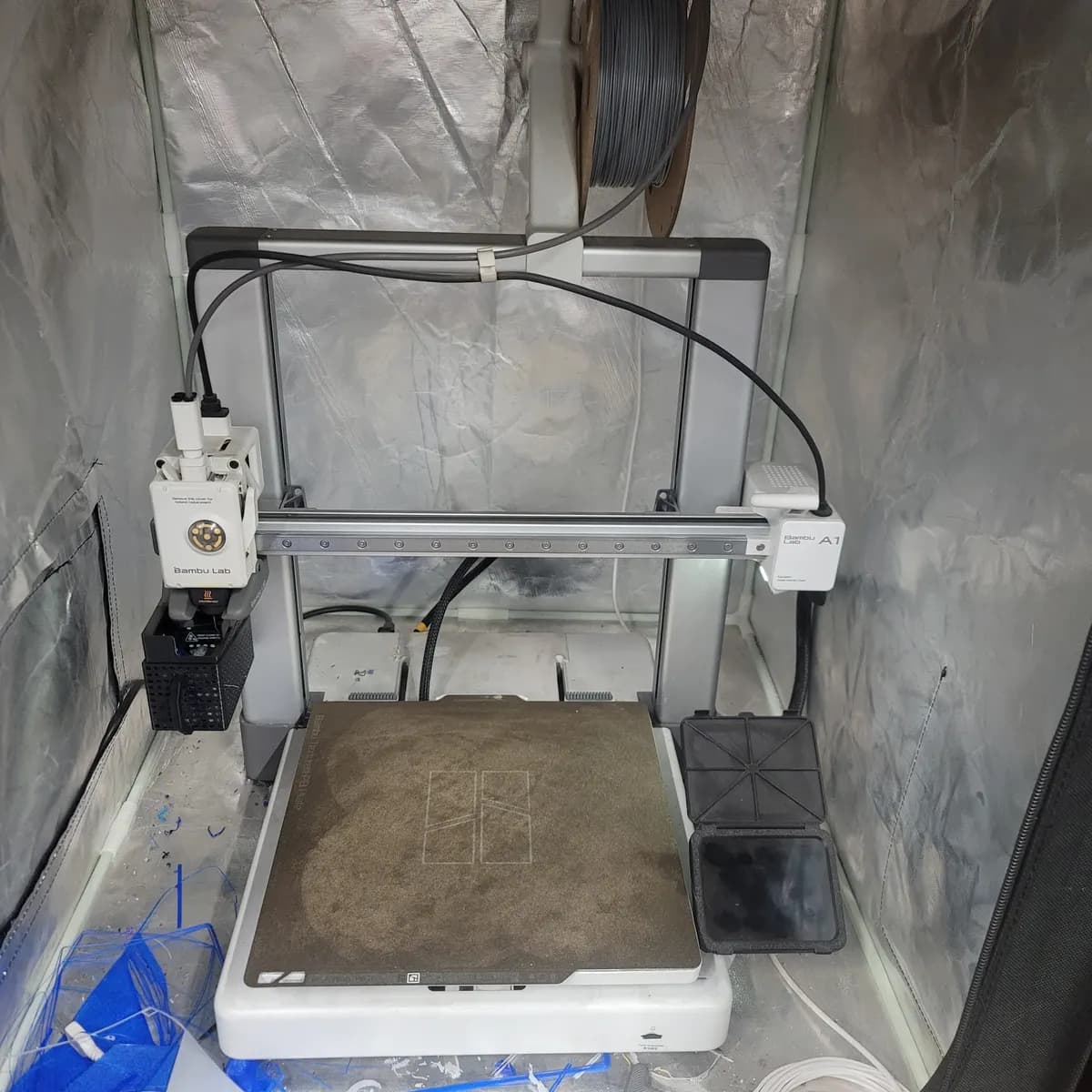
The Bambu Lab A1 is a good first 3D printer. It levels its own bed, it is quick, and it is forgiving when you are new. This guide covers what FDM printing is, which filament to start with, how to slice a model in Bambu Studio, what to check on the first layer, and what to do when a print goes wrong.
What FDM printing is
FDM stands for fused deposition modeling. The printer melts a plastic string called filament and lays it down in thin layers, one on top of another, until a part is built. You start with a 3D model (usually an STL file), a program called a slicer turns it into layers, and the printer follows those instructions.
Because the part is built from layers, FDM prints are strongest along the layers and weaker between them. Think about how a part will be loaded when you decide how to place it on the bed.
What the A1 is good at
The A1 is an open-frame printer, which means there is no enclosure around it. That makes it easy to watch, easy to reach, and a good match for the easy-to-print plastics. It also means it is not the right printer for materials that need a warm, closed chamber.
It measures and levels the bed for you before a print, so you spend less time fussing with the bed and more time printing. Bambu Studio, the slicer, is made for this printer, and a good profile for the standard filaments is built in.
The shop's A1 is a single-spool printer, so each print is one color. Plan your design as a single-color part.
Filament basics for beginners
Start with PLA. It prints at low heat, it hardly warps, and it is the easiest plastic to get right. Most first prints, tests and prototypes belong in PLA.
When you need a part that can take a knock or a little more heat, move to PETG. It is tougher than PLA and a bit stringier, so expect to tune your profile a little.
TPU is a flexible plastic for things like bumpers, gaskets and phone cases. It is soft and prints slowly, and it needs patience. Try it after you are comfortable with PLA.
Leave ABS and ASA to an enclosed printer. They warp and crack when a draft hits them, and they give off fumes that you do not want in an open room. The A1 is open, so do not use them on it.
Bring your own filament. The A1 takes a standard 1.75 mm spool.
- PLA: easiest, start here.
- PETG: tougher, a little more tuning.
- TPU: flexible, slower, more patience.
- ABS and ASA: not on the A1. Use an enclosed printer.
Slicing on the shop computer, step by step
Bambu Studio is the free slicer that turns your model into instructions for the printer. We run it on the shop computer, which sends the job to the A1. The steps below get you from a file to a print.
- 1. Pick your printer. Choose the Bambu Lab A1 at the top of Bambu Studio so the bed size and limits are right.
- 2. Import your model. Use File > Import or drag in an STL (or 3MF) file. Make sure it sits flat on the bed and fits.
- 3. Pick your filament and profile. Choose the filament type that matches the spool you loaded, such as PLA, then choose a process profile. The standard profile is a good place to start.
- 4. Place the part. Put the flattest, widest face down on the bed when you can. A part that sits flat prints better and needs less support.
- 5. Check supports. If the model has overhangs or bridges, turn on supports and look at the preview to see where they go. Supports waste plastic and leave marks, so a better orientation is often the easier fix.
- 6. Slice. Press Slice and wait for the preview. Scrub through the layers and watch for gaps, thin spots or floating pieces.
- 7. Send to the printer. Prints go out from the shop computer. Slice on the shop computer in Bambu Studio and send the job to the A1 over the network. If you designed at home, bring your STL or 3MF file on a USB stick or from a cloud drive.
- 8. Stay for the first layer. Watch the printer until the first layer goes down well, then check back during the print.
First-layer checks
Most failed prints are decided in the first few minutes, so these checks are worth the time.
- Clean the build plate. Fingerprints and dust are the usual reason a print will not stick. Use the cleaner the shop recommends.
- Make sure the plate is seated flat and the correct side is up.
- Watch the first layer go down. The lines should be flat and touch each other with no gaps, and they should be stuck to the plate.
- If the lines look like round strings, or they curl up at the edges, stop the print and start again after cleaning the plate.
- If the nozzle is dragging a messy blob, stop. Do not let a bad first layer ride.
Common failures and fixes
Prints fail for the same handful of reasons. Here is what to look for.
- Print will not stick to the plate: clean the plate, check you have the right plate side up, and check the first layer again.
- Corners lifting (warping): clean the plate, keep drafts off the printer, and stay with PLA while you are learning.
- Stringy or hairy prints: the filament may be wet. Dry it, or try a fresh spool, and check your filament profile.
- Spaghetti (a tangled mess of plastic): a print came off the plate and kept going. Stop the job, clear the plate, and look at your first layer and part orientation before you try again.
- Rough or drooping overhangs: turn the part so fewer faces overhang, or add supports.
- Under-extrusion (thin, gappy walls): check that the spool is not tangled and the filament feeds freely.
- Layers shifting: stop the job and tell a shop leader. Do not keep running a printer that is skipping.
Safety and etiquette
A 3D printer is simple, but it has a hot nozzle and a heated bed, and it runs for hours.
- The nozzle and bed are hot. Do not touch them while a print is running, and give them time to cool after.
- Keep fingers and loose sleeves away from the moving parts.
- Use only the filaments listed in this guide on the A1.
- Stay until the first layers look good, then check in during the print. Do not walk away from a print and forget it.
- Take your finished part, and clear the plate and any waste before you leave so the next person can start clean.
- Tell a shop leader if something does not look right. Do not try to fix a mechanical problem on your own.
- Long prints are fine. There is no time limit.
Settings
FAQ
What filament should I use on the Bambu Lab A1?
Start with PLA. It is the easiest to print. Once you are comfortable, PETG gives you a tougher part and TPU gives you a flexible one.
Can I print ABS or ASA on the A1?
We recommend that you do not. ABS and ASA warp without an enclosure and give off fumes, so leave them to an enclosed printer.
What file do I need for a 3D print?
An STL or 3MF model file. You can download models from the internet or design your own in CAD software. Bring it on a USB stick or from a cloud drive, then slice it in Bambu Studio on the shop computer.
How do I send a print to the A1?
Slice on the shop computer and send the job to the printer from there. Bambu Studio on that PC sends it to the A1 over the network.
Do I bring my own filament, and can I print in more than one color?
Bring your own 1.75 mm spool. The shop's A1 is single-spool, so prints are one color.
Is there a time limit on long prints?
No. Long prints are fine. Stay until the first layers look good, and check in during the print.
Why won't my print stick to the plate?
Usually the plate is dirty. Clean it, make sure the right side is up, and watch the first layer again. If it still will not stick, ask a shop leader.
Do I need to level the bed myself?
No. The A1 checks and levels the bed automatically before it prints. You still need to keep the plate clean.
What do I do if a print turns into spaghetti?
Stop the print, let the nozzle and bed cool, and clear the plate. Then look at your first layer and part orientation before starting again.